How Tekyous works
Tekyous has two main features:
- →Tools catalogue - discover and compare curated developer tools across categories, with detailed profiles, scores, and pricing information.
- →Interactive stack builder - a visual canvas where you design your tech stack, get real-time recommendations, and explore how tools relate to each other.
Last updated: October 2026. This page reflects the current state of Tekyous and will be updated as the product evolves. For features in development - user accounts, saved stacks, AI Chat, and more - see the Roadmap.
1. Tools catalogue
The tools catalogue lists curated developer tools across categories like frontend frameworks, databases, hosting, authentication, and more. You can filter the catalogue by category, pricing tier, or experience level, and click any tool to read the full profile. Each tool's page comes with a description, pricing model, learning curve, and a list of related tools.
From a tool's detail page you can also launch it directly into the stack builder - either as part of a predefined stack alongside tools that work well together, or as a single starting point for a freeform Sandbox session.
2. Stack builder
The stack builder is a visual canvas at tekyous.dev/builder. It lets you place developer tools onto a canvas and see your full architecture in one view. The builder is desktop-only - it requires enough screen space to show the canvas, panels, and toolbar simultaneously.
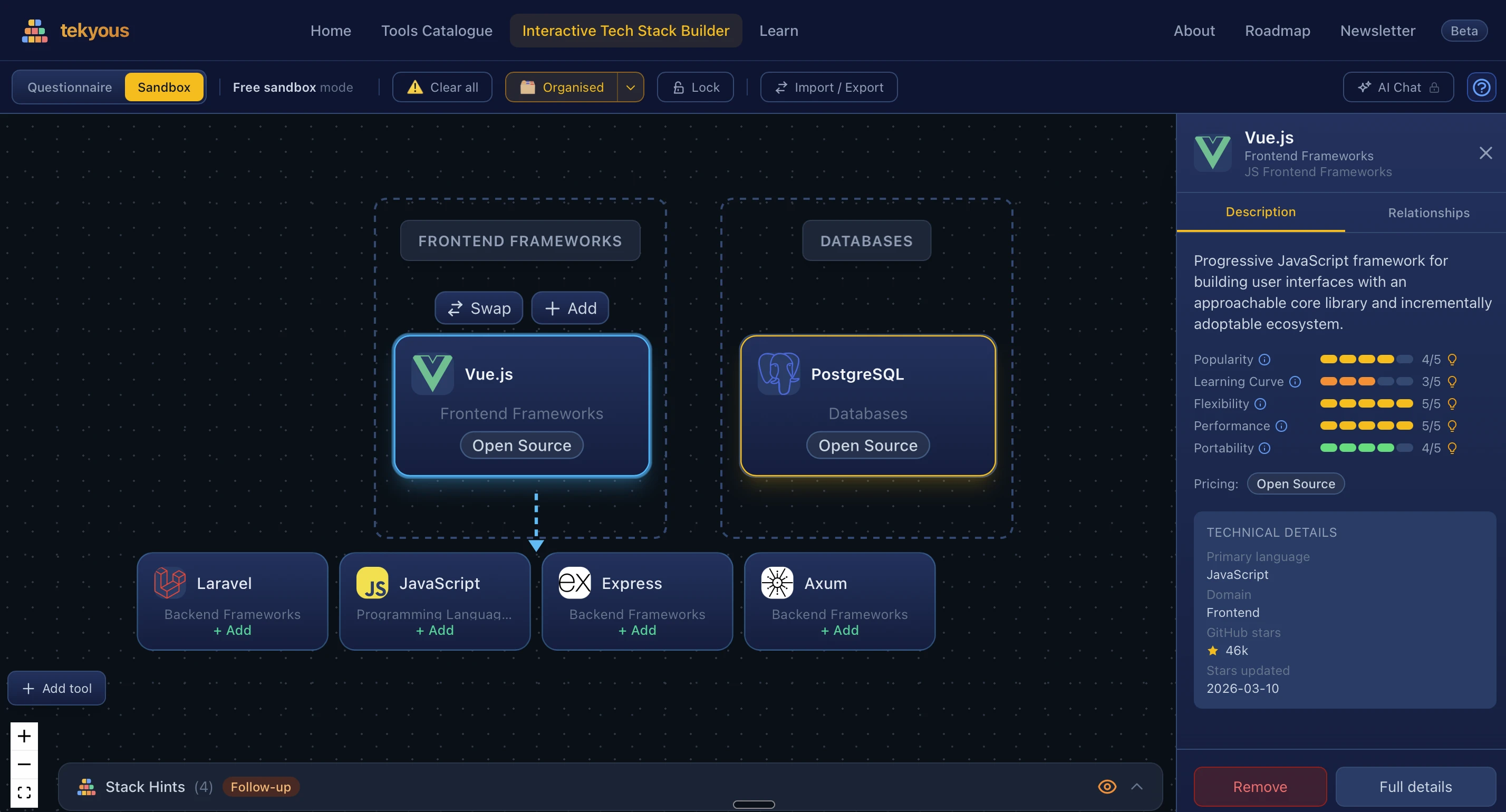
2a. Questionnaire mode vs. Sandbox mode
When you open the builder, you choose between two modes of working:
Recommendation engine mode
Fill in your experience level and project type. The recommendation engine builds a ranked starting stack for you automatically. You can then swap individual tools, apply language filters or deviate from the suggestion - every change is tracked in the Stack changes notice.
Free exploration mode
No questionnaire, no constraints. Start with a blank canvas and add any tool from the catalogue. Suggestions are still offered based on the relationships between tools in the database - but nothing is pre-filled and nothing is tracked as a "change".
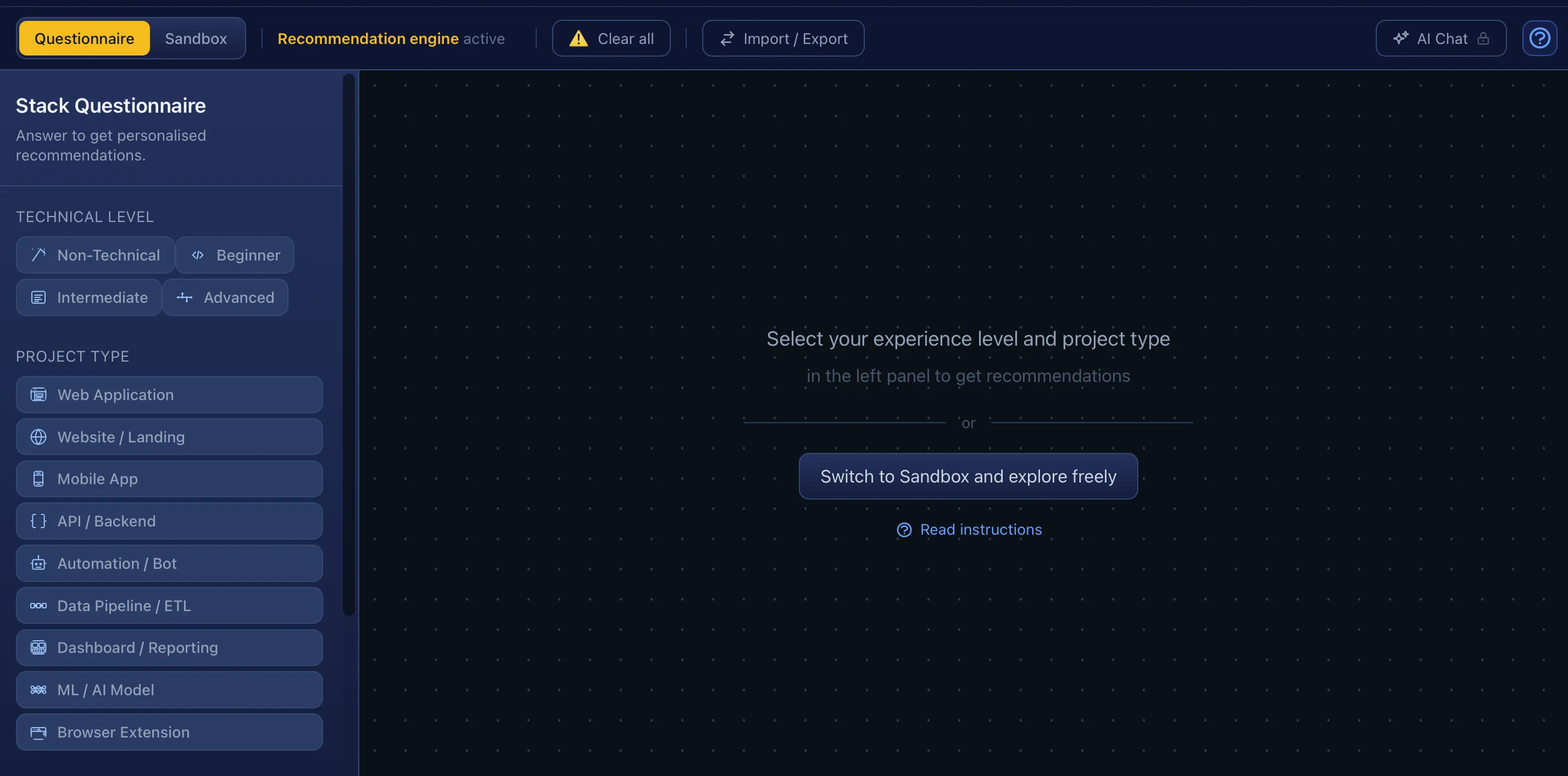
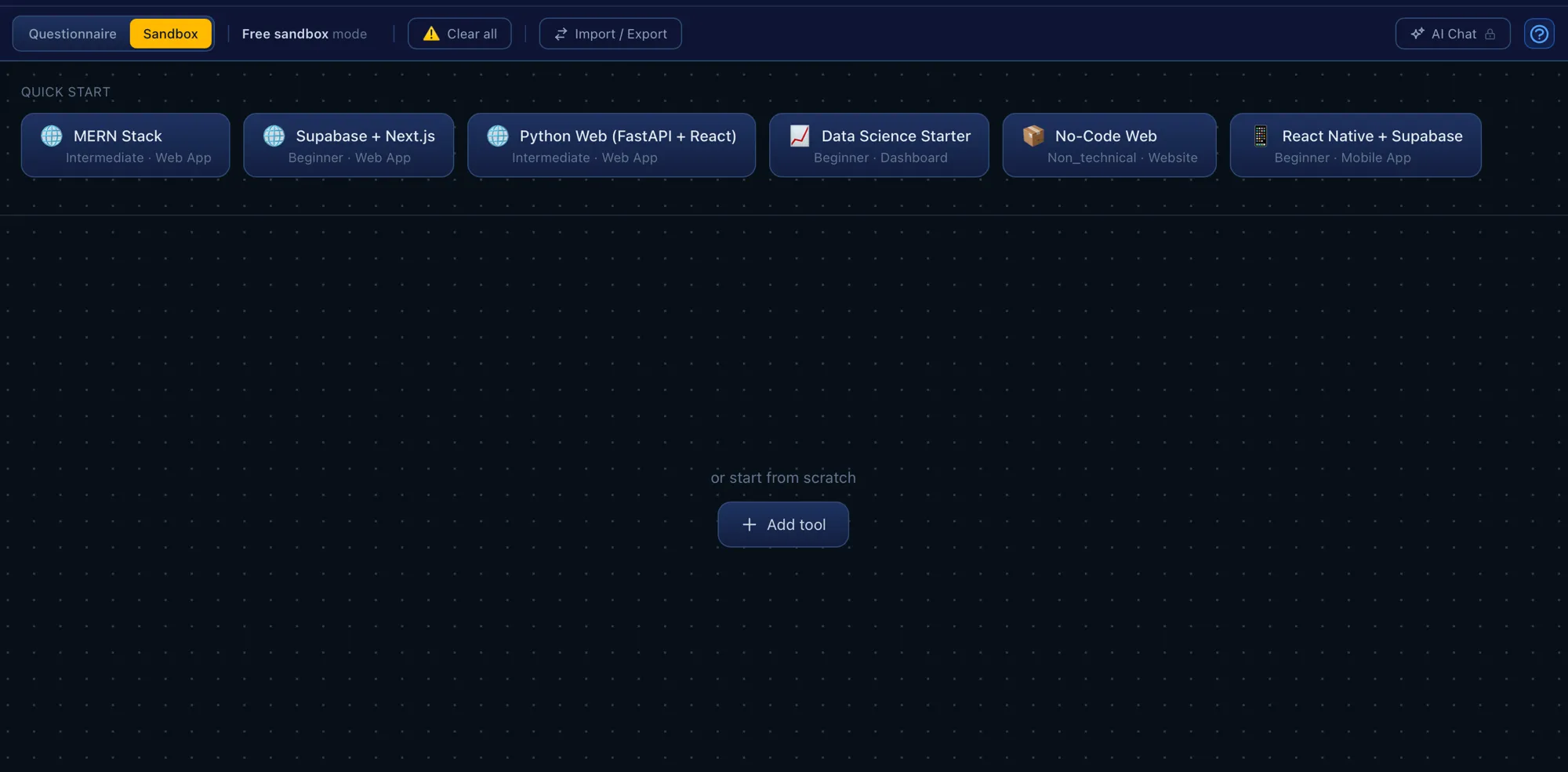
2b. Toolbar
The toolbar sits above the canvas and is the main control surface for the builder.
- →Mode indicator - Shows if you are using Questionnaire or Sandbox mode. If it's the recommendation engine running through the Questionnaire, then there's an extra button available to see the rationale behind suggested tools (Stack overview). Furthermore, if a recommendation has a multiple types then we can switch between them using an additional button as well.
- →Clear all - Clears the whole selection on the canvas. Sits behind double-click as it should be used with caution - what was on the canvas just gets erased.
- →Organise - Groups cards into category or subcategory columns automatically with a single-click.
- →Lock - Freezes all card positions so nothing moves accidentally.
- →Export / Import - Export downloads the canvas state as a JSON file; Import restores a previously saved file.
- →AI Chat - A preview of an AI chat feature, which will be implemented post-MVP. Right now the chat window pops up, but it's locked.
- →Help - Opens the compact how-to guide covering the main features of the builder.

2c. Canvas interactions
The canvas is interactive - you can drag tool cards around to arrange your diagram, zoom in and out with the scroll wheel, and pan by dragging the background.
- →Click a tool card - Highlights the selected node, shows quick suggestions and swap option, also opens the tool detail panel (detail panel is described in the section below).
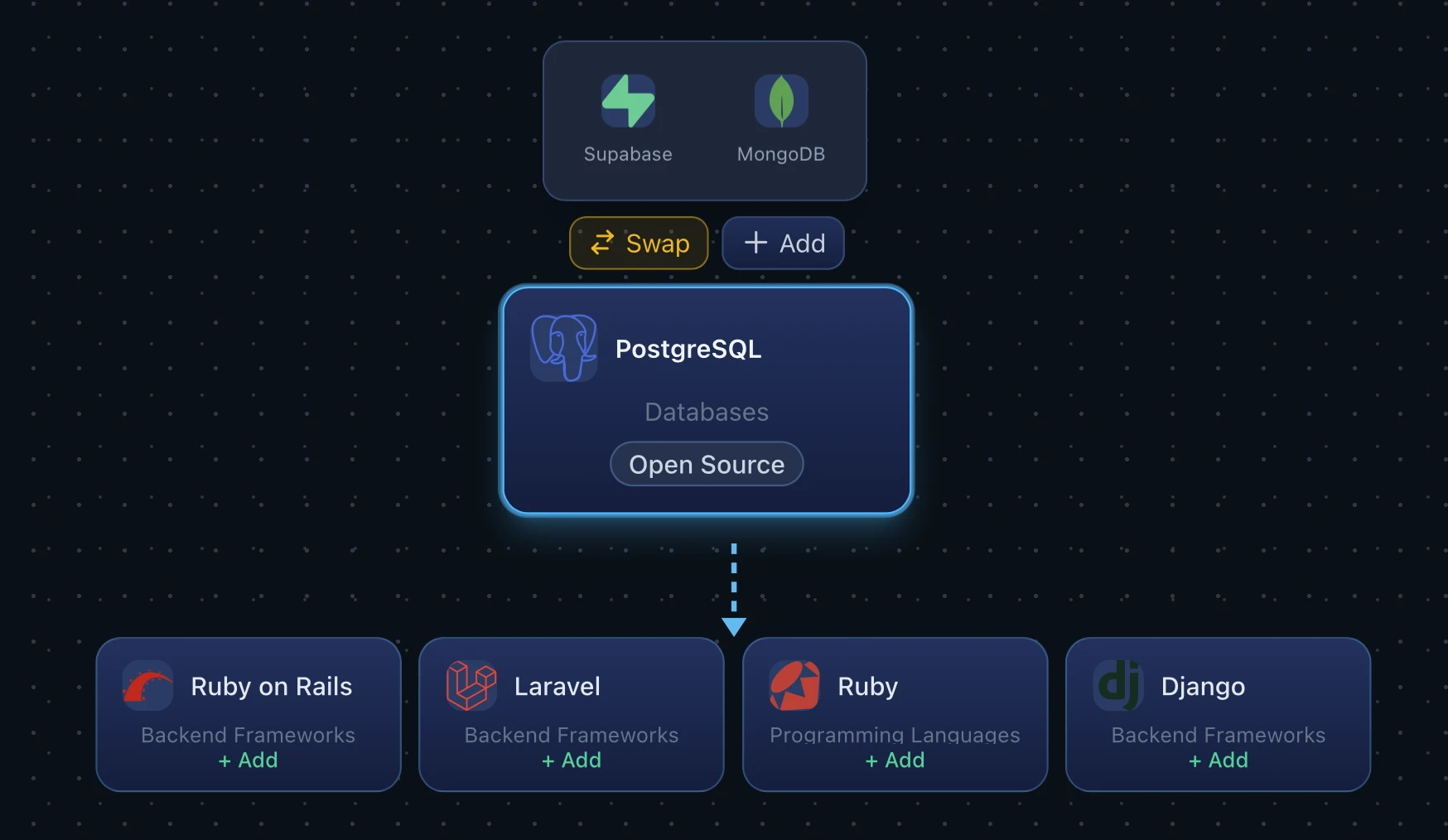
Swap option allows quick change to an alternative tool. - →Click + Add tool button - Triggers the tool picker side panel, allowing you to add any tool to the canvas without limiting yourself to suggestions or alternatives.
- →Tool drag - Reposition any tool card freely on the canvas by dragging it.
- →Scroll - Zoom in and out on the canvas with the scroll wheel.
- →Drag the background - Pan the canvas to navigate large stacks by dragging the empty background.
2d. Canvas behaviour
Beyond direct input, the canvas responds to the state of your stack - it supports two layout types, and tool cards show visual cues depending on how they were added.
- →Organised layout - Tools are grouped into category columns, so each tool sits under its assigned category. This is the default layout when using Questionnaire mode or a predefined Sandbox stack, and can also be triggered at any time with the Organise button in the toolbar. Additionally, we can also use a detailed layout with subcategories grouping - they can be split vertically or horizontally.
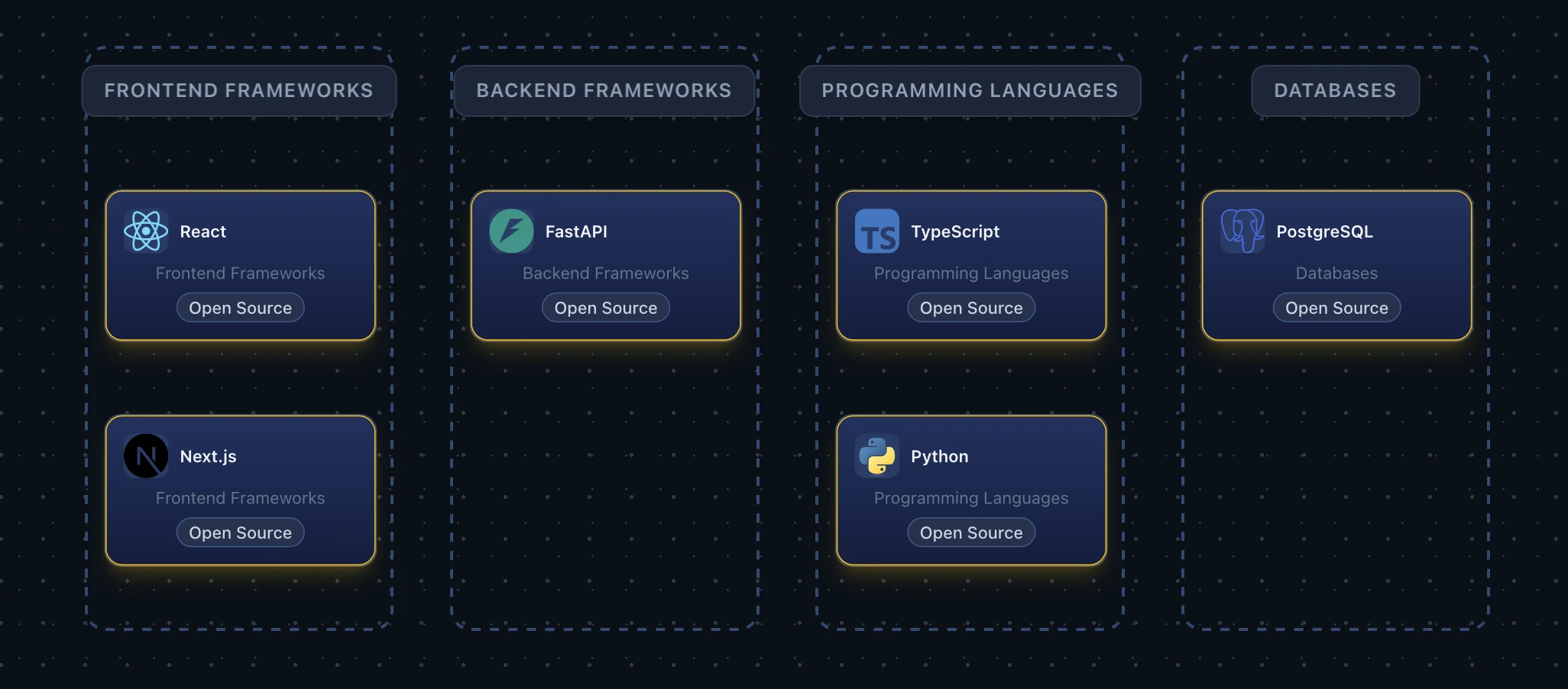
Basic organised layout - tools grouped into labelled category columns. 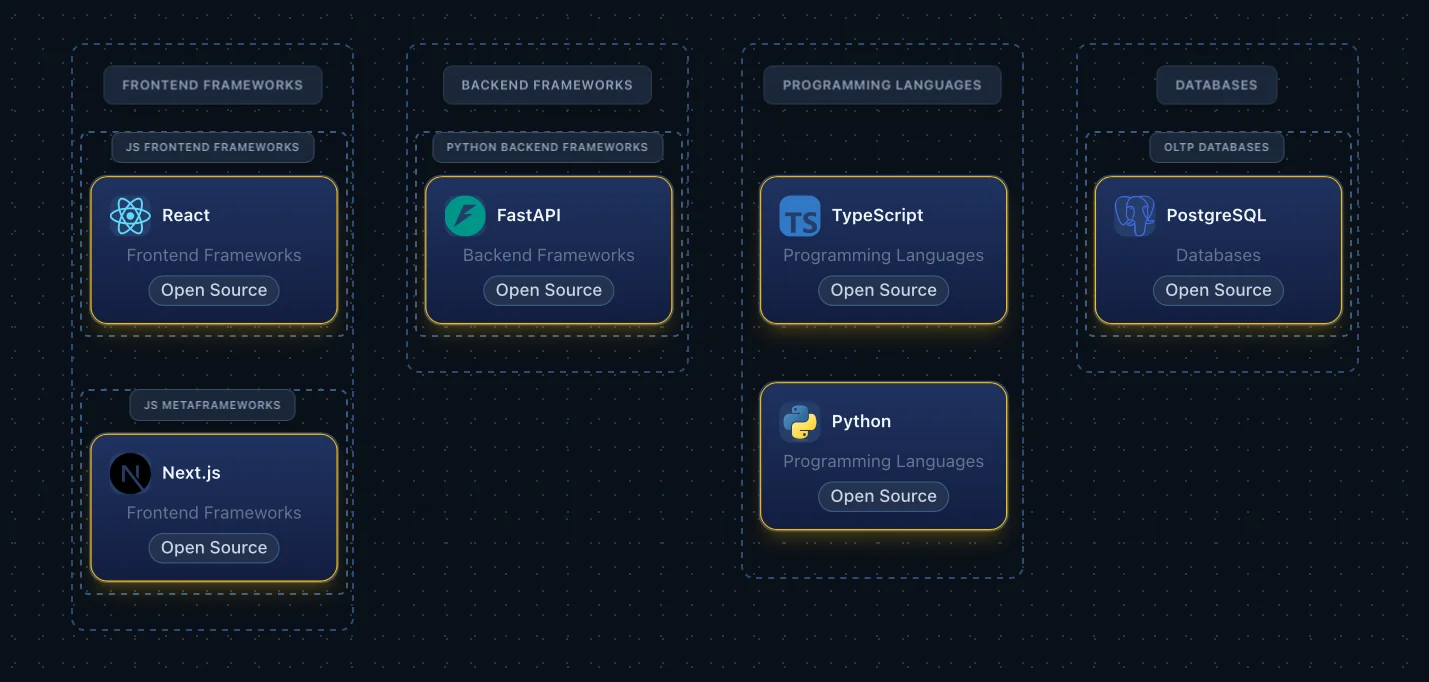
Detailed subcategory layout - tools grouped into labelled subcategories. Placed vertically, in one column. 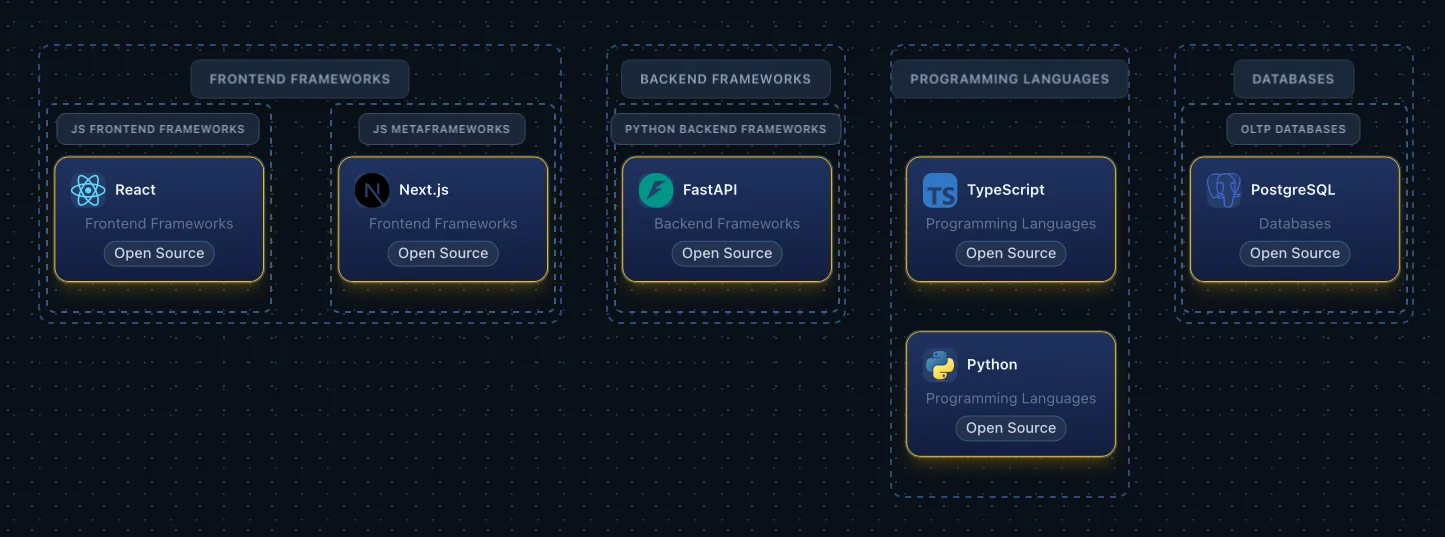
Detailed subcategory layout - tools grouped into labelled subcategories. Placed horizontally, with a column per subcategory. - →Free layout - Tools sit wherever you place them - there is no category grouping. This is the default for free Sandbox sessions, and it also takes effect when you move tools out of their columns in an organised layout.
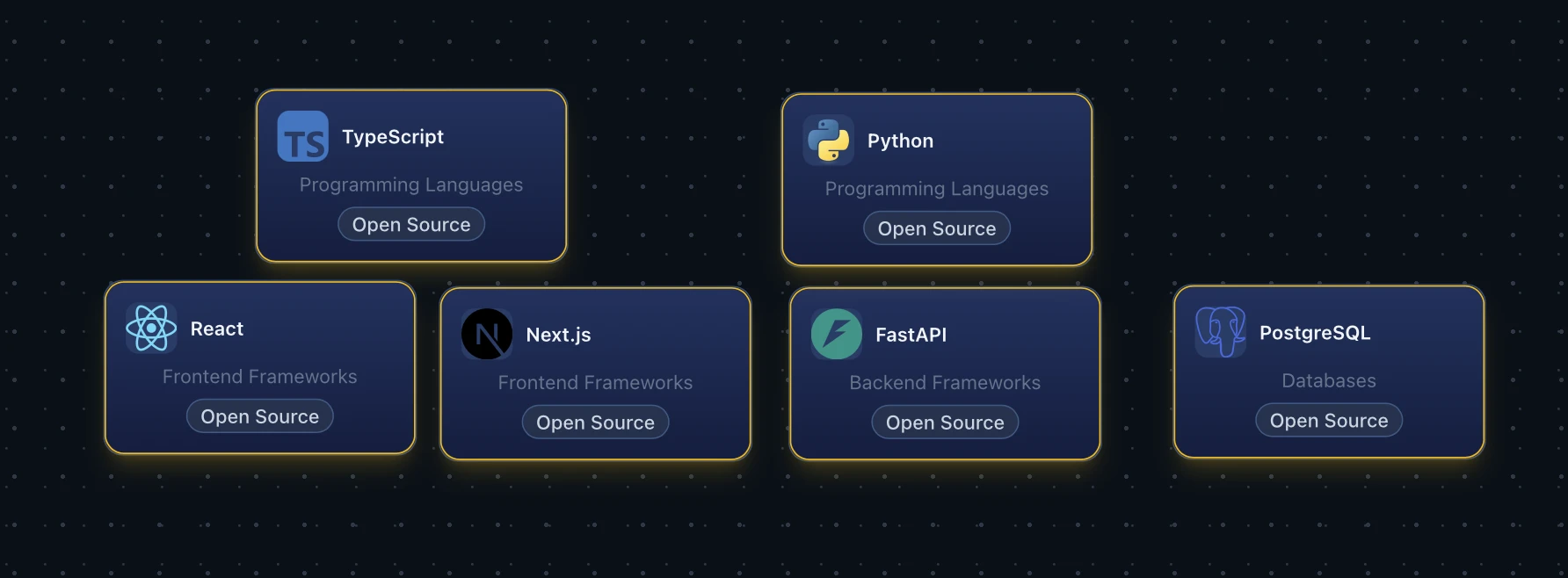
Free layout - tools placed freely, no category grouping. - →Tool selection state - When you click a tool card, it becomes selected and its border highlights to show it is active. The tool detail panel opens on the right to reflect the selection. These three states reflect how a tool got onto the canvas; separately, a tool can also carry structural flags - like being enforced by another tool, or a child of a parent tool - covered in their own sections below.
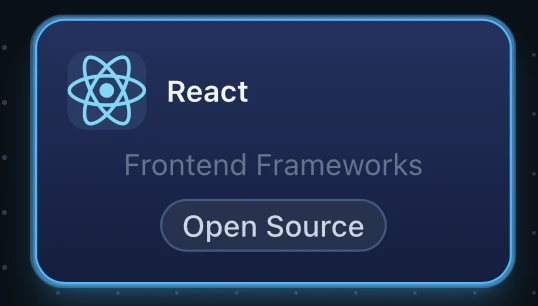
Current - our selection. Blue border. 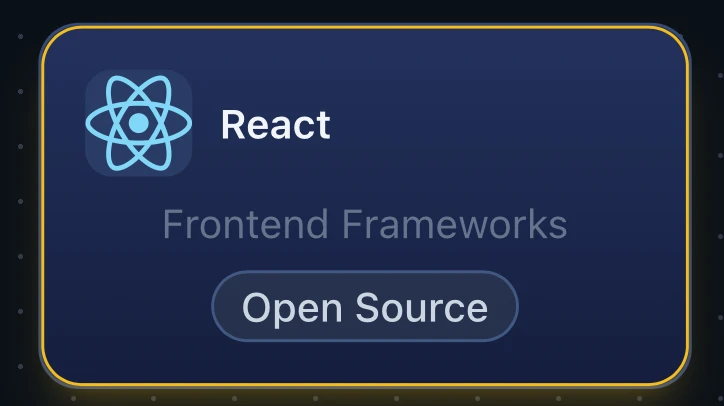
Manual - added directly by us. Amber border 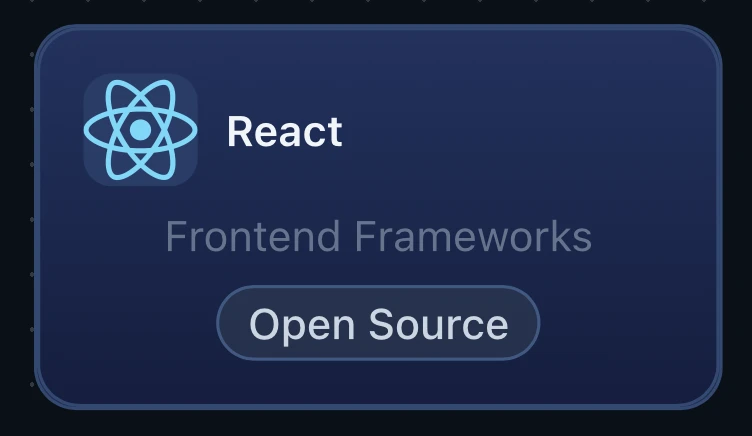
Recommendation - came from the questionnaire. No extra border. - →Selection grid - Available in Questionnaire mode once an experience level and project type are selected. A collapsible overlay in the top-left corner of the canvas - click the icon to expand a grid showing all recommended tools organised by category and subcategory. Each tool displays its icon and name; the one currently on the canvas is highlighted in amber. Click any tool to add it to the canvas or remove it if it is already there, making it a quick way to scan the full ranked pool and swap alternatives without opening any side panel.
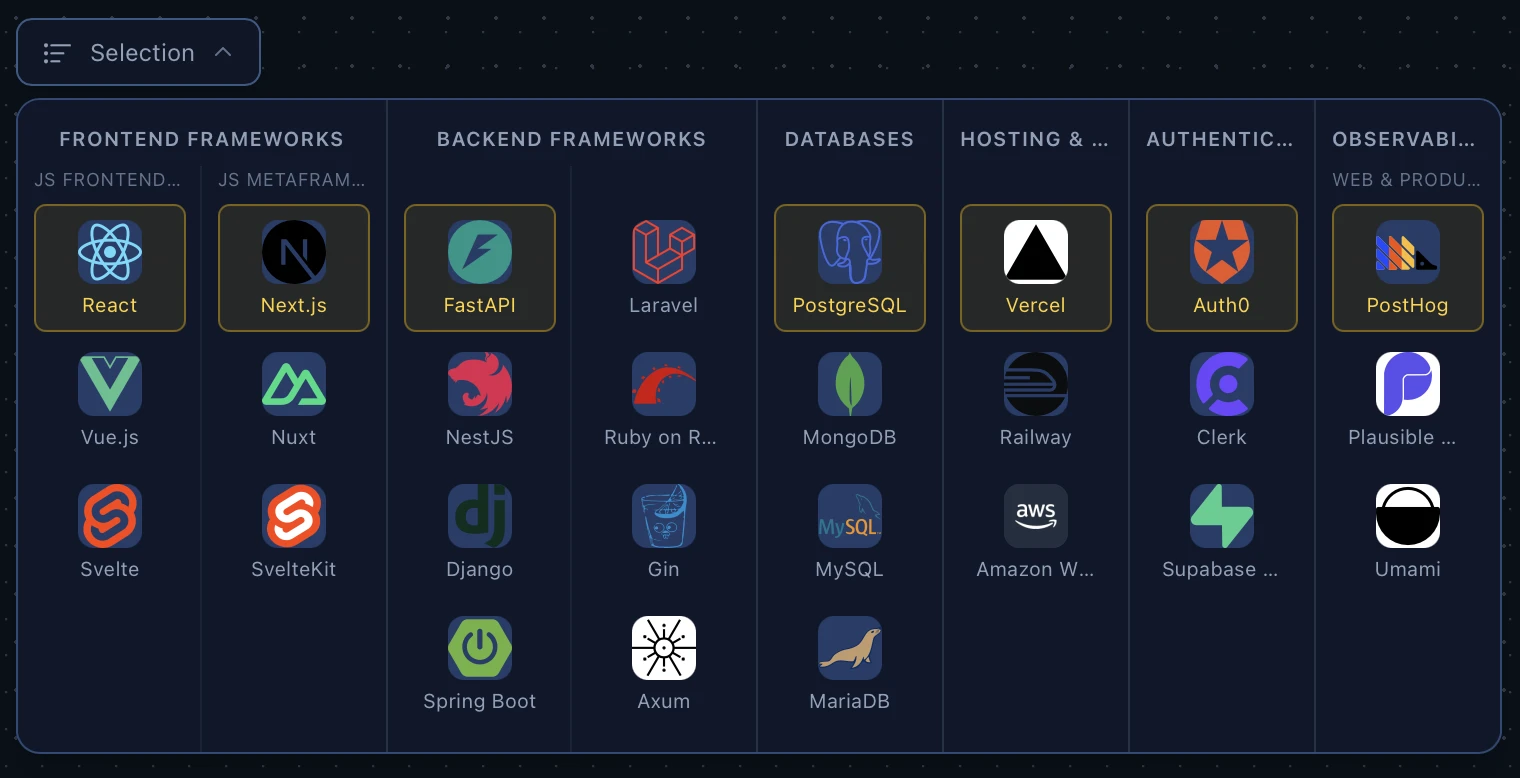
Selection grid - collapsed icon and expanded grid view. - →Stack changes notice - The questionnaire produces a list of suggested tools, but you can swap any of them or add tools freely. All deviations from the original recommendation are tracked and displayed on the canvas.
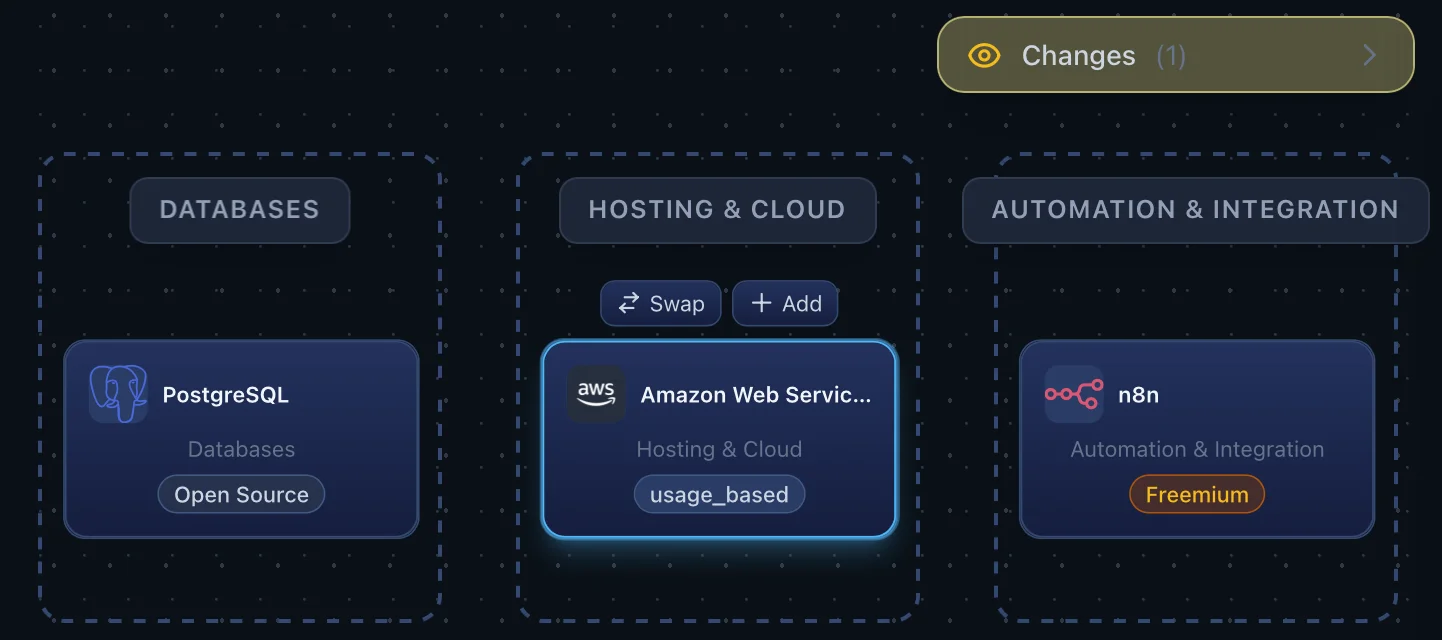
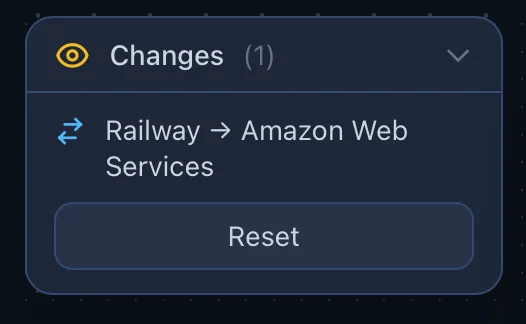
- →Enforced tool state - Some tools are added automatically because a relationship requires them - for example, AI Builder tools using a predefined tech stack only. Enforced tools cannot be removed independently from the canvas as long as the enforcer tool is still present there.
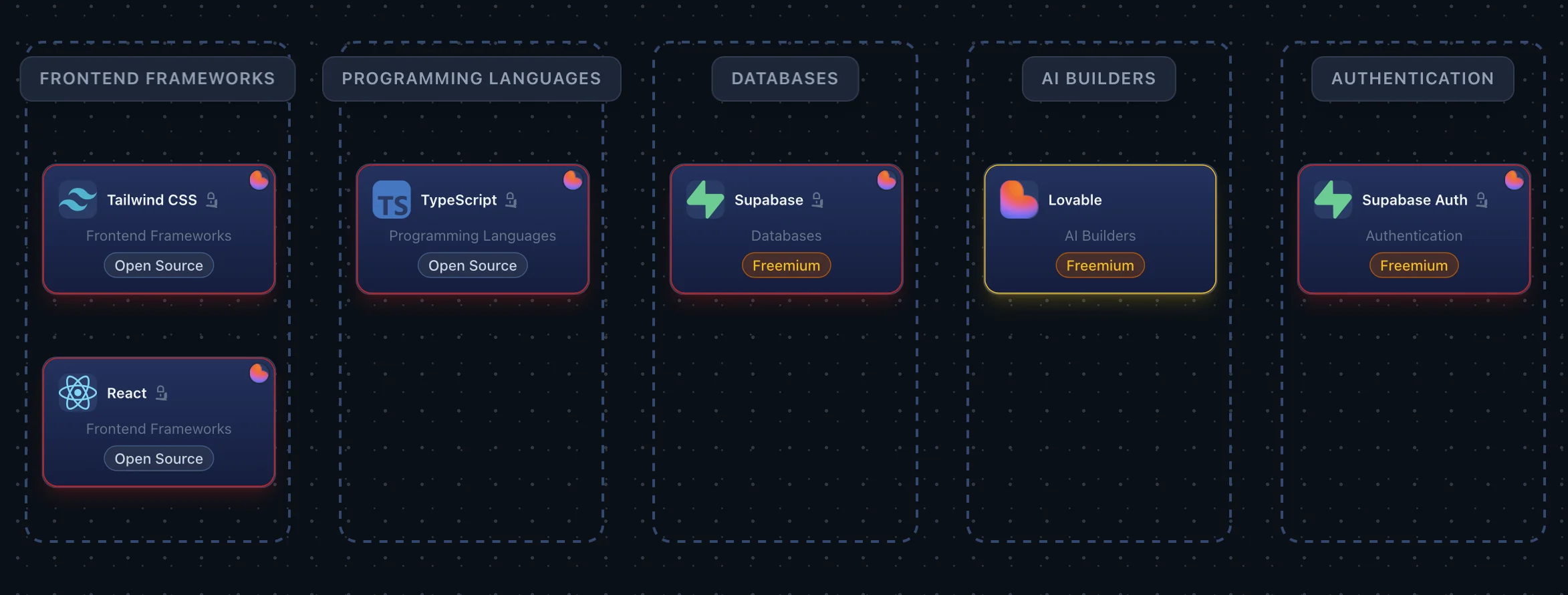
Enforced tools have a lock icon and muted border. - →Child tool state - Some tools are sub-tools or managed variants of a parent tool - for example, django-allauth is part of Django, and n8n Data Tables (pictured) is part of n8n. These carry a small link icon next to the name and a violet border to flag the relationship, and the tool detail panel shows a "Part of
" link back to the parent. 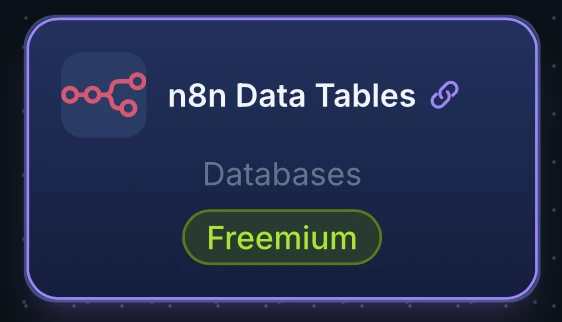
Child tools have a link icon and violet border.
2e. Tool detail panel
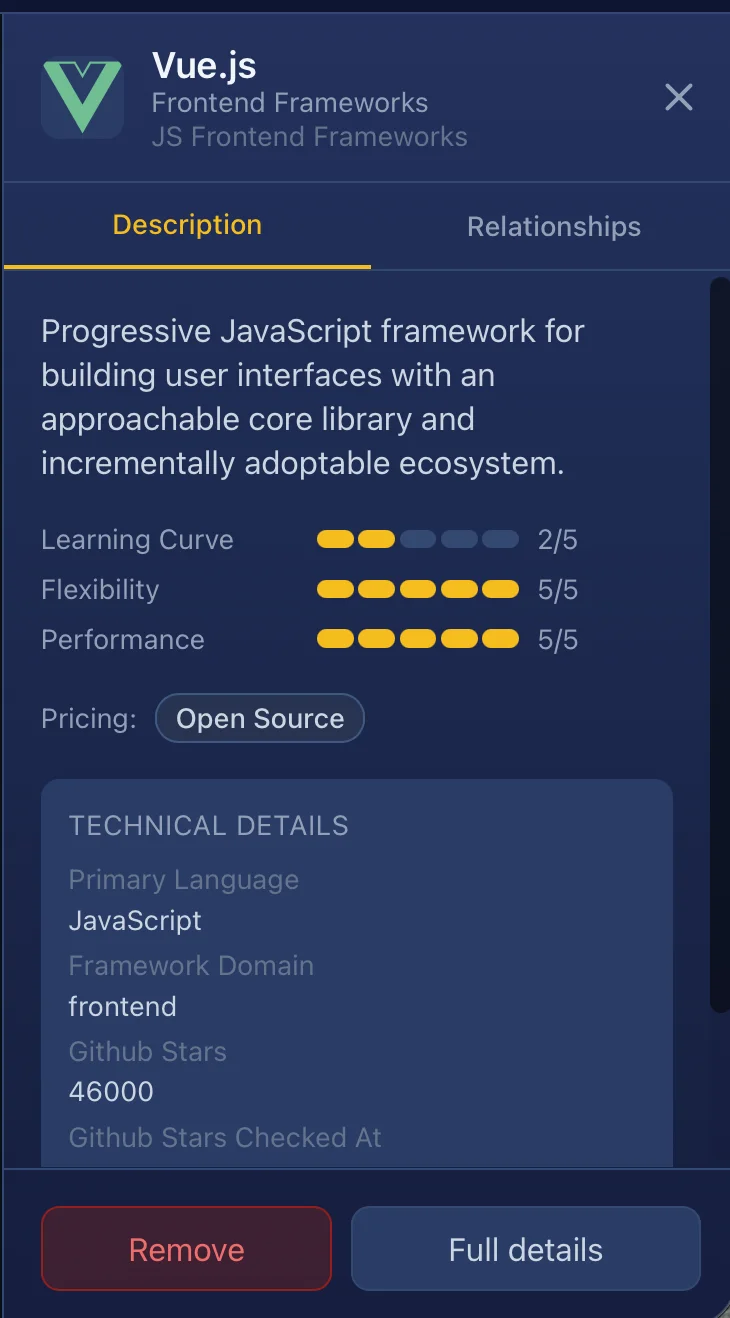
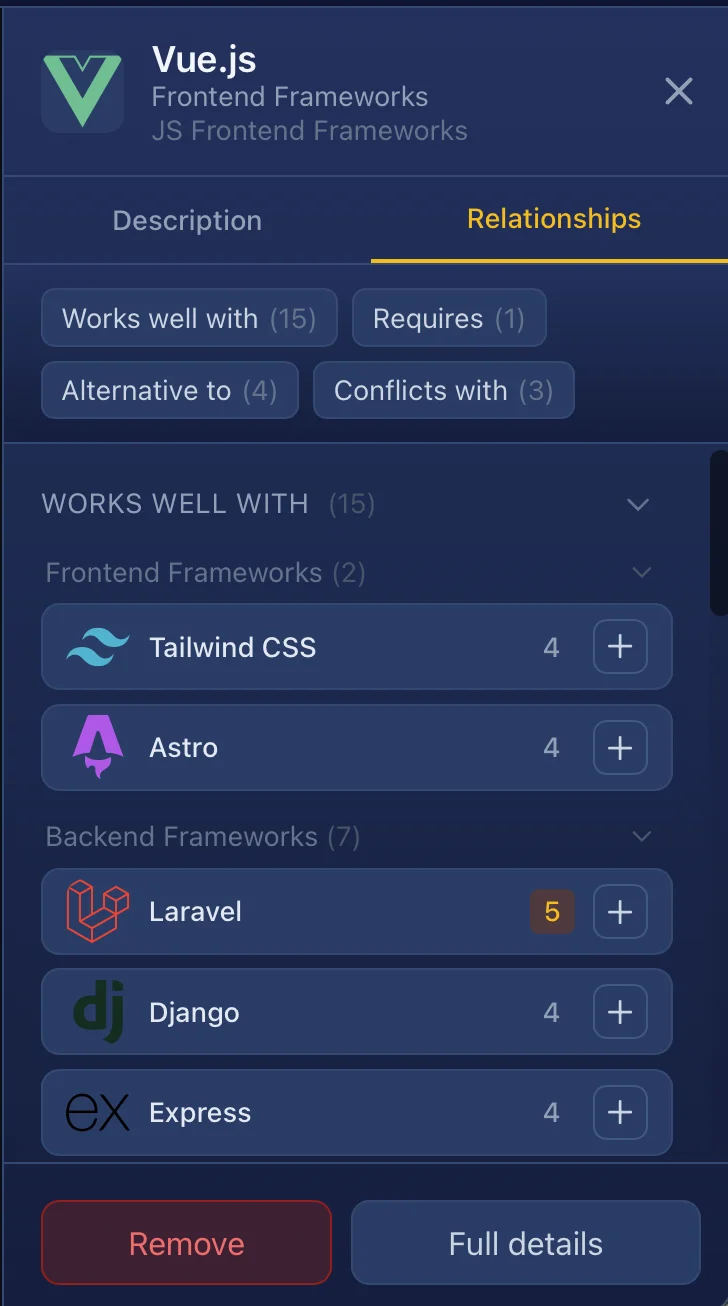
Clicking any tool card on the canvas opens the tool detail panel on the right side. The panel has two tabs: Description - covering the tool's summary, scores (learning curve, flexibility), and pricing - and Relationships, which lists related tools drawn from the database.
2f. Tool picker panel
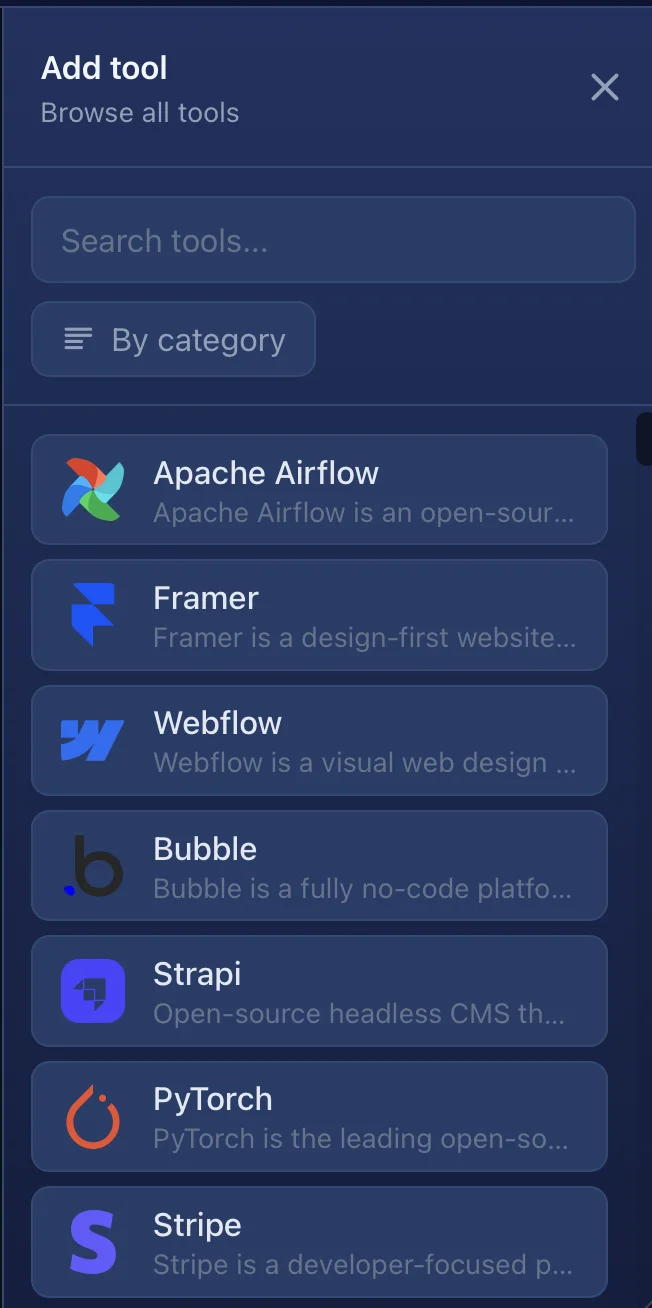
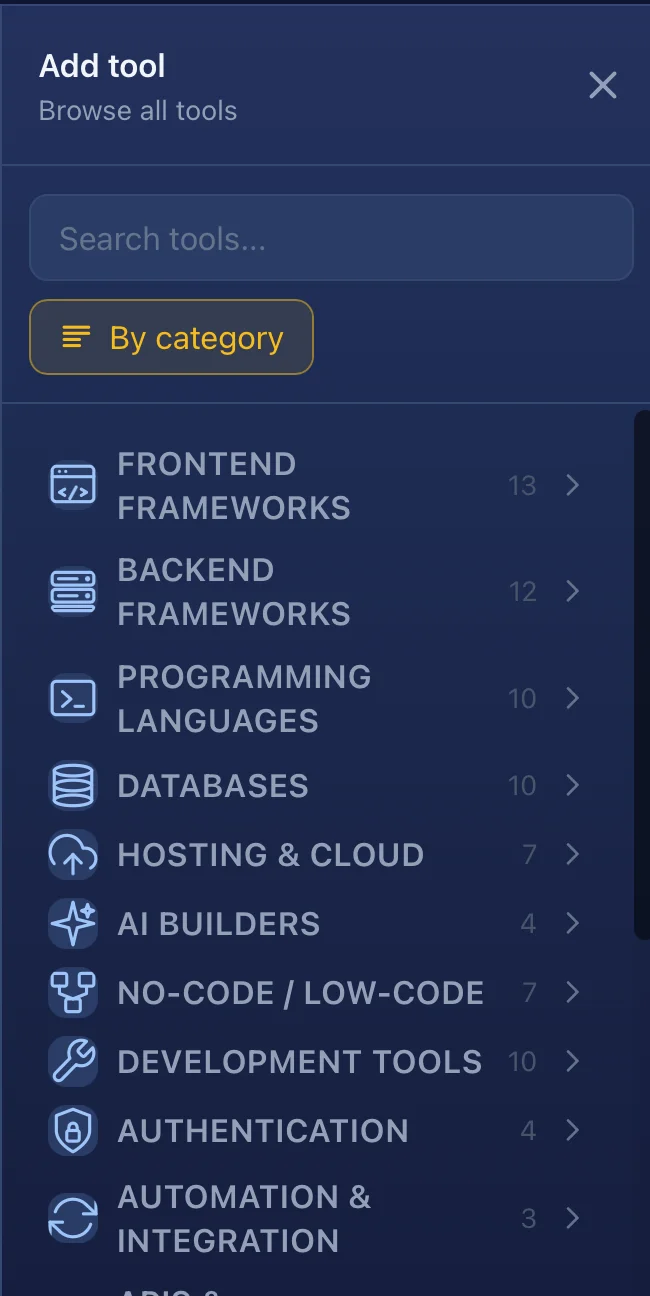
The tool picker panel is a searchable drawer that gives you access to the entire tools catalogue. You can filter by category or search by name, and add any tool directly to your canvas.
2g. Stack Hints panel
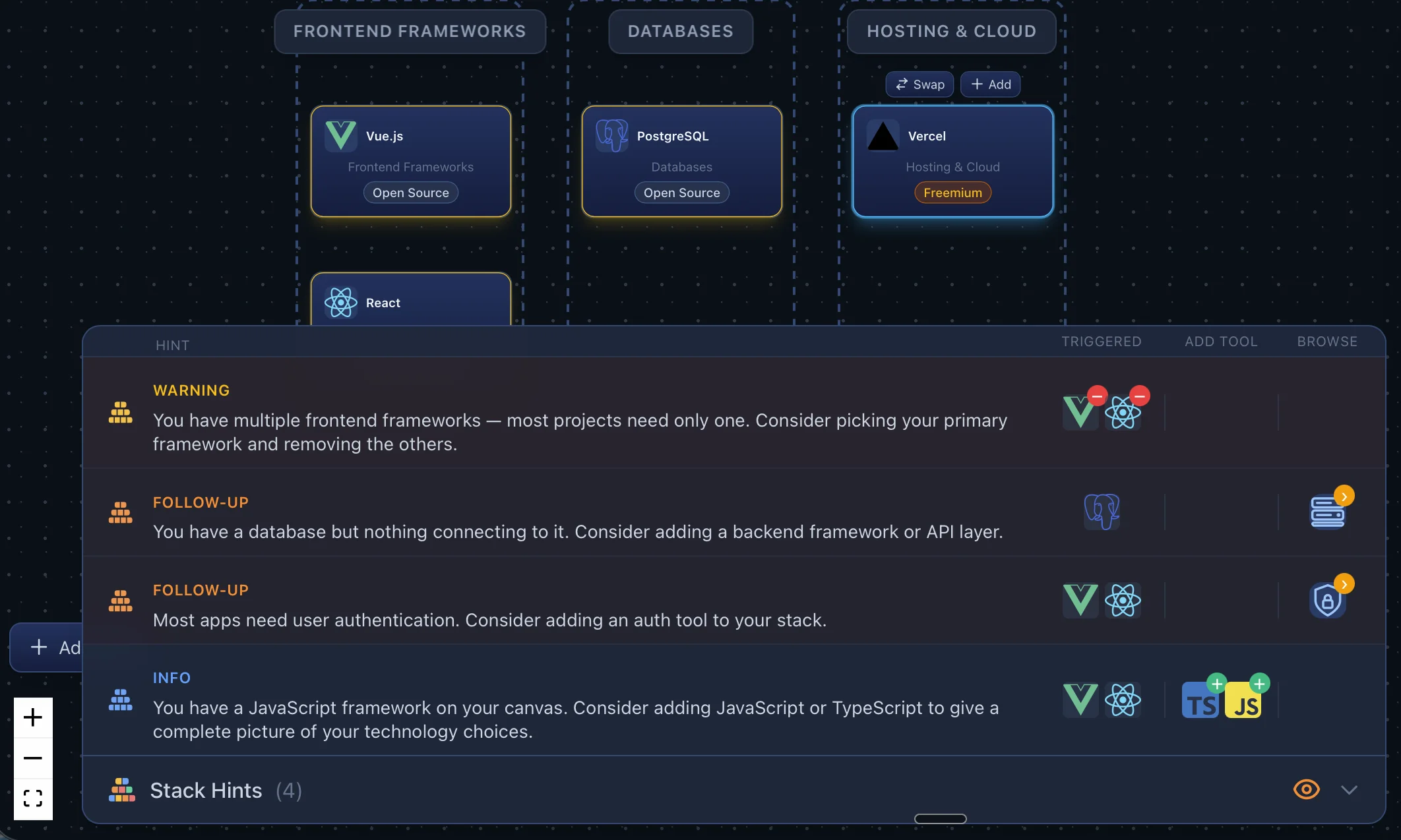
Once tools are on the canvas, the Hints panel appears at the bottom. It analyses your stack in real time and surfaces contextual hints - compatibility problems, missing dependencies, or suggestions for tools that commonly pair well with what you already have.
Error
A serious incompatibility or conflict that needs resolving.
Warning
A potential issue worth reviewing before committing to the stack.
Follow-up
A secondary consideration - typically a common pairing or next step.
Info
Contextual information about a tool in your stack.
Success
Tools that pair well together - a positive signal about your stack.
- →Each hint shows which tools triggered it, with action buttons to add a suggested tool, remove a conflicting one, or browse a relevant category.
- →Click the panel header to expand or collapse the list. It auto-expands briefly when new hints arrive.
- →Use the eye icon to suppress all hints if you want a distraction-free canvas.

2h. Export and import
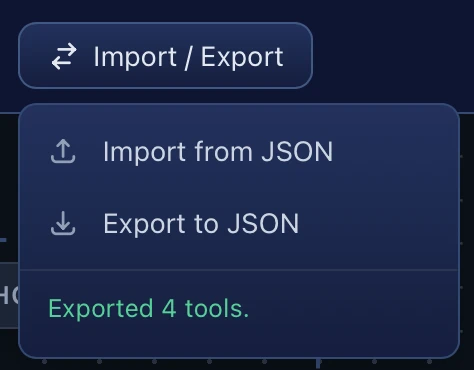
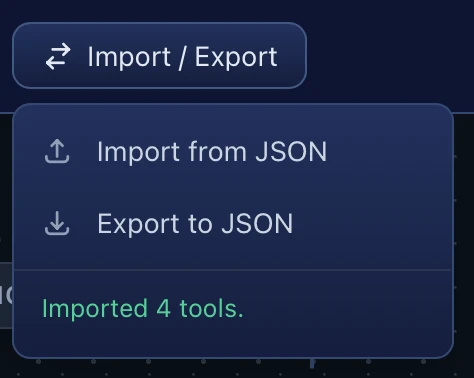
The toolbar includes Export and Import buttons. Export downloads the current canvas state as a JSON file you can save locally. Import loads a previously exported file, restoring all nodes and their positions - so you can pick up exactly where you left off, or share a stack with a colleague.

No account is required to export or import. User accounts, saved stacks, and shareable links are on the roadmap - see the Roadmap page.
3. Tool relationships
Relationships define how tools interact with each other across tekyous. They power the suggestions and hints in the stack builder, and also surface on individual tool pages in the tools catalogue under the Related tools section.
4. Categories
Every tool in Tekyous belongs to one category. Categories are used to filter the tools catalogue, group tools into columns in the stack builder's organised layout, and label tools inside the tool picker drawer. There are currently 21 categories.
Click a category to open the Stack Builder in Sandbox mode with that category's tool picker ready to browse.


→ Full reference with descriptions and subcategories: Tool Categories on Tekyous
5. Project types
Project types are used in the stack builder's Questionnaire mode to tailor tool recommendations to the kind of project you are building. Selecting a project type tells the recommendation engine which categories and tools are most relevant, so the generated starting stack reflects the actual shape of your project.
Click a project type to open the Stack Builder in Questionnaire mode with that type pre-selected.

Web Application
A browser-based web app or SaaS product. Assumes fully fledged app, with both frontend and backend.

Website / Landing
A marketing website, blog, or portfolio. Most likely will not need a dedicated backend service and a seperate database, but might rely on a CMS instead.

Mobile App
An iOS/Android native or cross-platform app.

API / Backend
A REST or GraphQL API with no frontend.

AI Agent
Software where a language model decides what to do next, in a loop that calls tools. Covers hosted personal agents, no-code agent workflows, agents you run on your own server, and agent code built on a framework.

Automation / Bot
Scripts, workflows, bots, and scheduled jobs where the steps are fixed in advance: a trigger, then actions. A step may call an LLM to summarise or classify, but if a model decides what happens next, choose AI Agent instead.

Data Pipeline / ETL
Building data ingestion, transformation, or orchestration workflows.

Dashboard / Reporting
Analytics dashboards, BI reports, or embedded data visualisations.

ML / AI Model
Training, evaluating, or deploying your own machine learning and AI models. For software where an existing language model plans and acts through tools, choose AI Agent instead.

Browser Extension
A browser extension or add-on targeting Chrome, Firefox, or other browsers. Uses extension-specific frameworks (Plasmo, WXT) and follows Manifest V3 architecture with content scripts, background service workers, and browser storage.
→ Full reference with descriptions: Project Types on Tekyous
6. Frequently asked questions
Can I save my stack?
You can export your current canvas as a JSON file and re-import it later. Cloud saving and shareable links are on the roadmap - see the Roadmap for details.
Where do the recommendations come from?
The questionnaire produces a general, opinionated starting stack - not a personalised analysis. The ranking is based on predefined rules tied to your project type and experience level: editorial judgement grounded in general knowledge about what tools work well together. Think of it as a sensible starting point, not a tailored prescription. A fully personalised experience - where you describe your exact use case and constraints - is on the roadmap as part of the upcoming AI Chat feature. See the Roadmap for details.
Can I use the stack builder on mobile?
The stack builder is desktop-only - it requires a large screen to display the canvas, side panel, and toolbar at the same time. The tools catalogue and all other pages work on mobile.
How do I suggest a tool that is missing from the catalogue?
Use the Submit a tool form. We review all submissions and add tools that fit the catalogue.
Ready to try it?
The stack builder is free, no account required.