Canvas guide: drawing your stack diagram
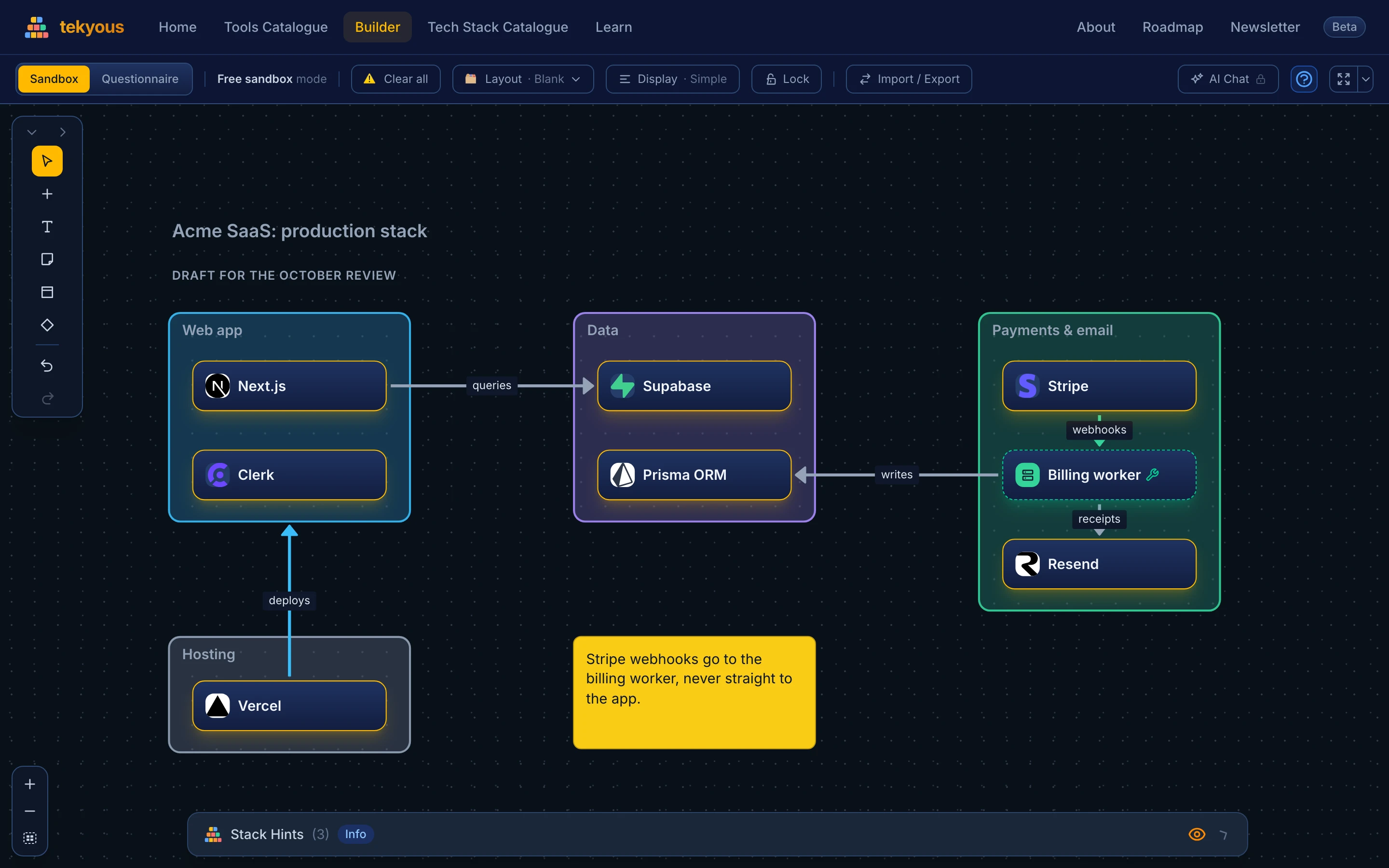
The stack builder opens in Sandbox, the canvas where your tech stack becomes a diagram: the tools you picked, grouped in frames, with notes, labelled connectors that show which tool talks to which, and cards for anything the catalogue does not list. This page shows each idea once. The builder's help button has the full list of controls and shortcuts.
New to Tekyous? How Tekyous works covers the tools catalogue, the two builder modes, the hints panel and tool relationships.
Last updated: October 2026. Everything here is free and needs no account. The builder is desktop-only.
1. Start a diagram
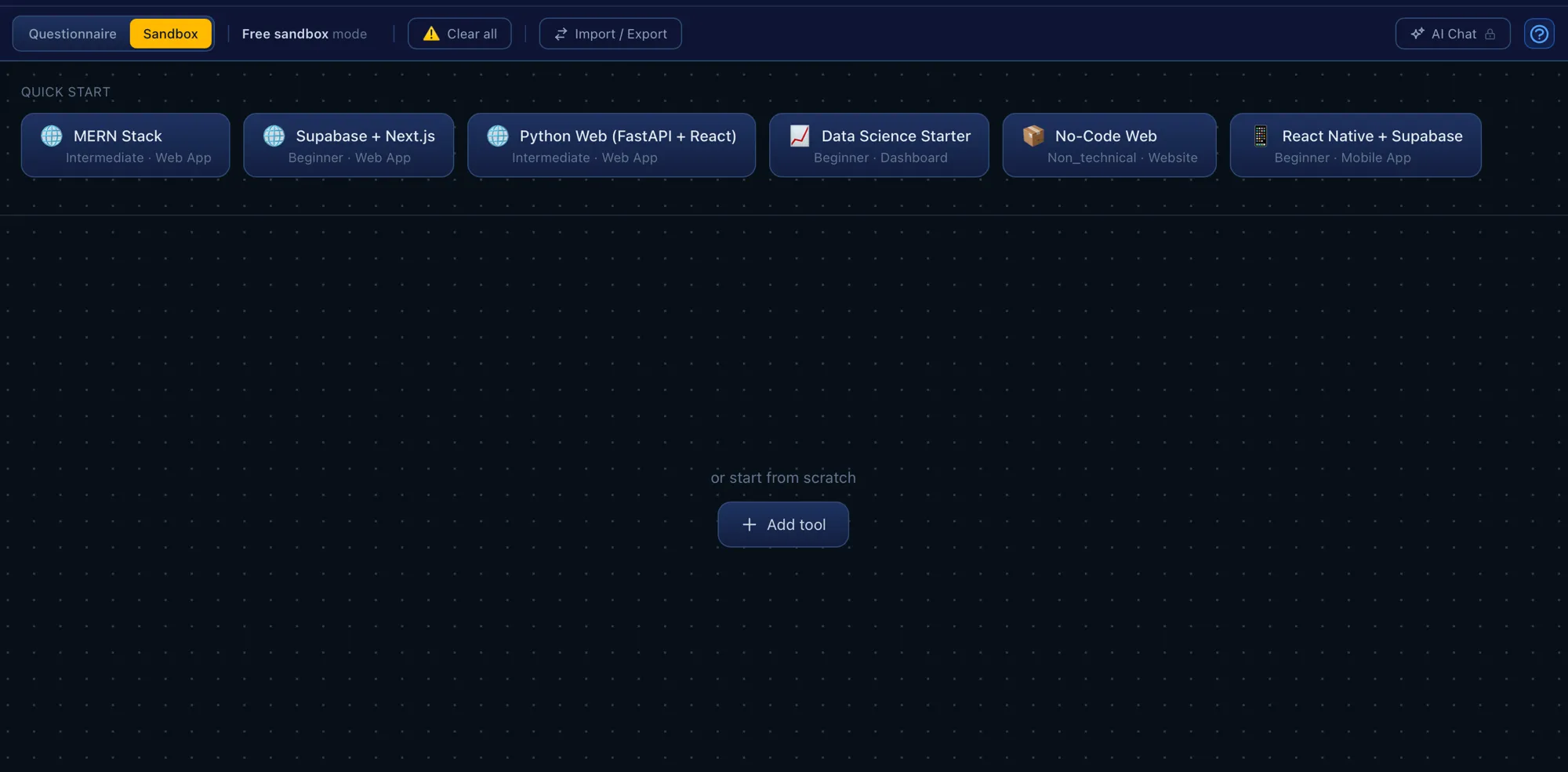
An empty Sandbox offers three ways in. Start from a stack loads a predefined stack, already laid out. Get a recommendation opens the Questionnaire: pick your experience level and the kind of project, and the recommendation engine proposes a ranked stack. Start from scratch opens the tool catalogue, or you can begin with text, a note or a frame from the toolbox on the left.
The Questionnaire is a preview of the engine's answer: you can swap tools, add tools, hide categories and change the layout and display, but the cards stay where the engine put them. Switch back to Sandbox in the toolbar to arrange it yourself; the Sandbox starts from the recommended stack.
2. Lay it out with frames
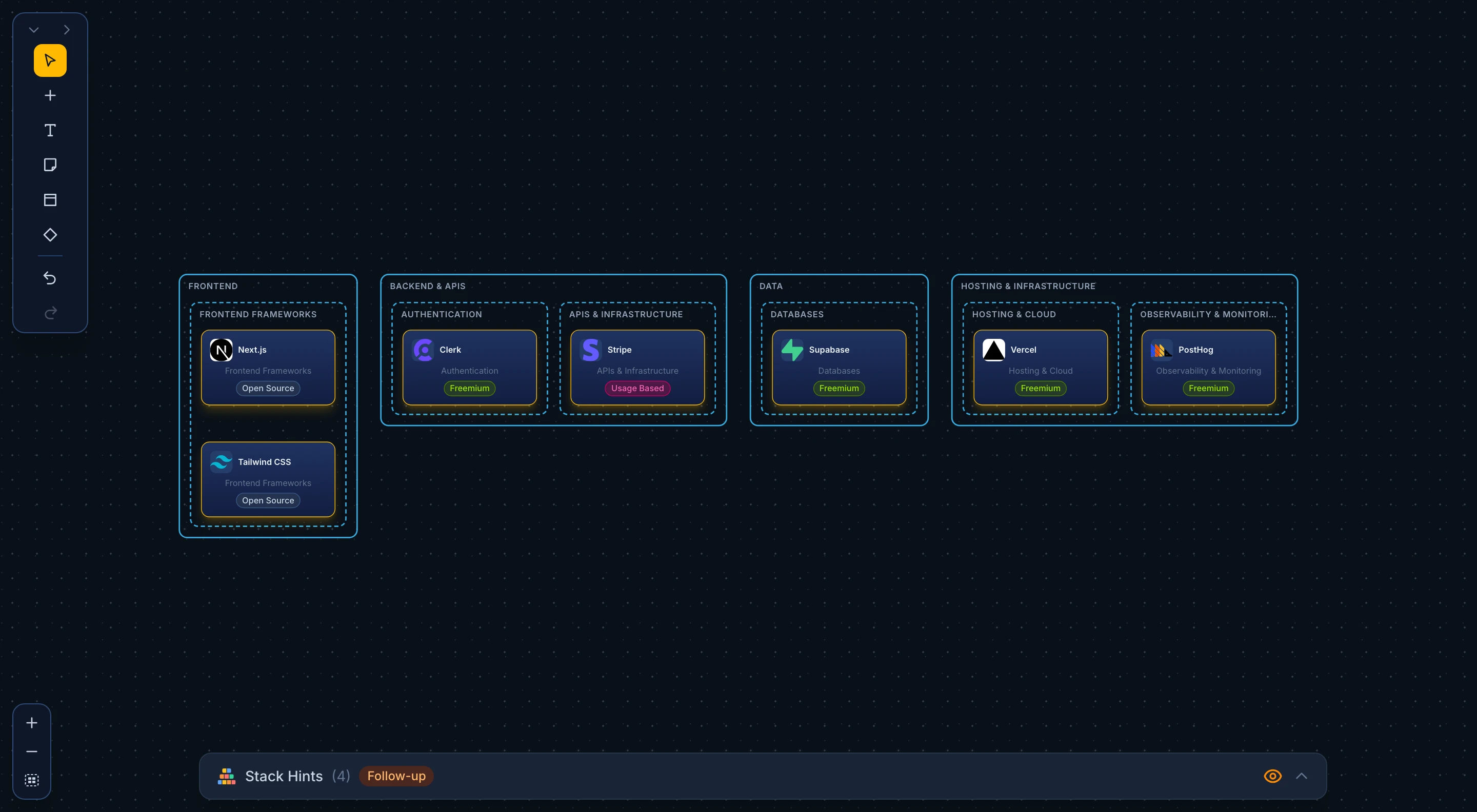
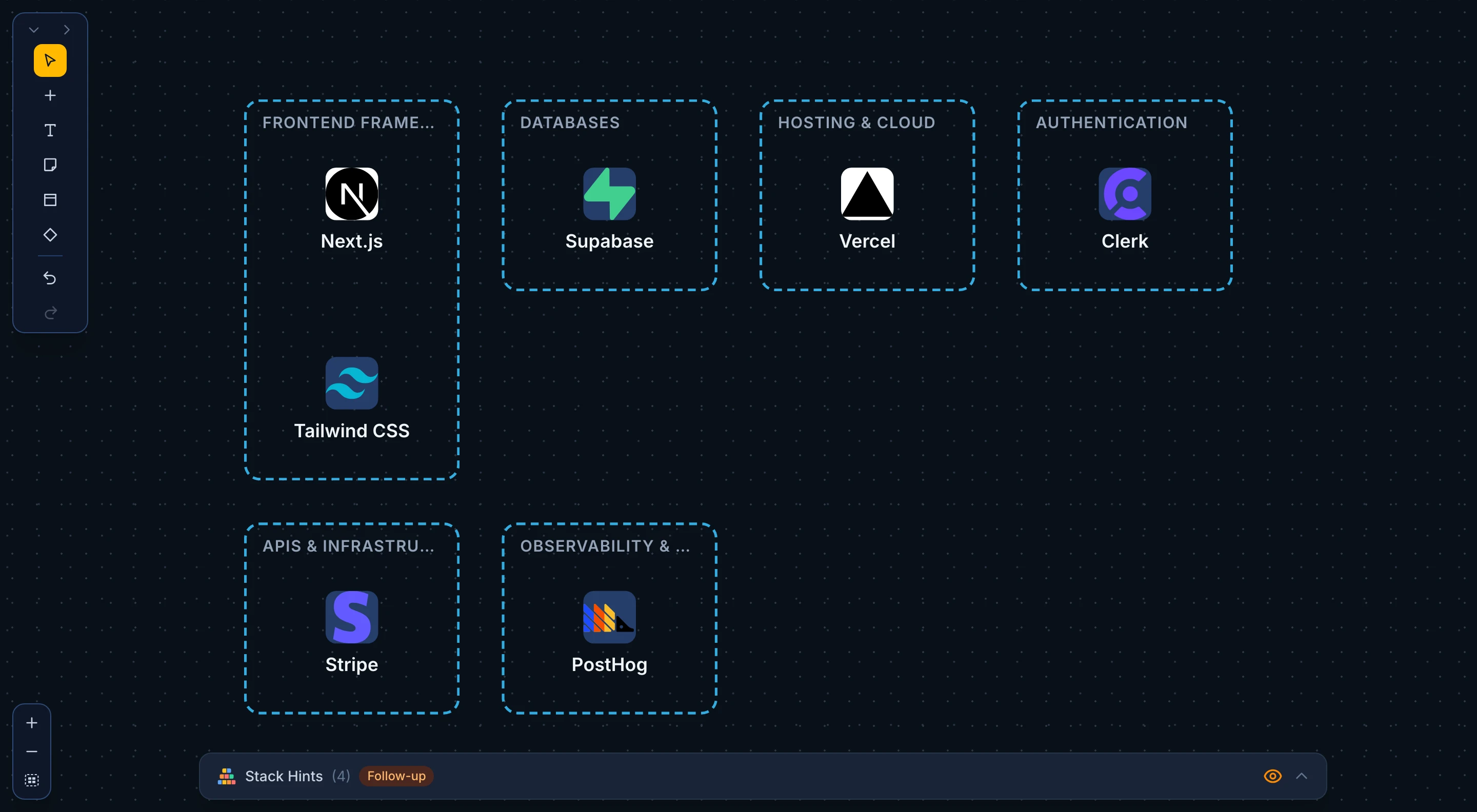
Layout in the toolbar sorts the cards into frames, one per category: side-by-side columns, a wrapping grid (the default), subcategory frames inside each category, stacked or side by side, or layered bands such as Frontend, Backend and Data. With Sort new tools into frames on, every tool you add lands in the right frame. Blank stops sorting and keeps the frames as ordinary frames.
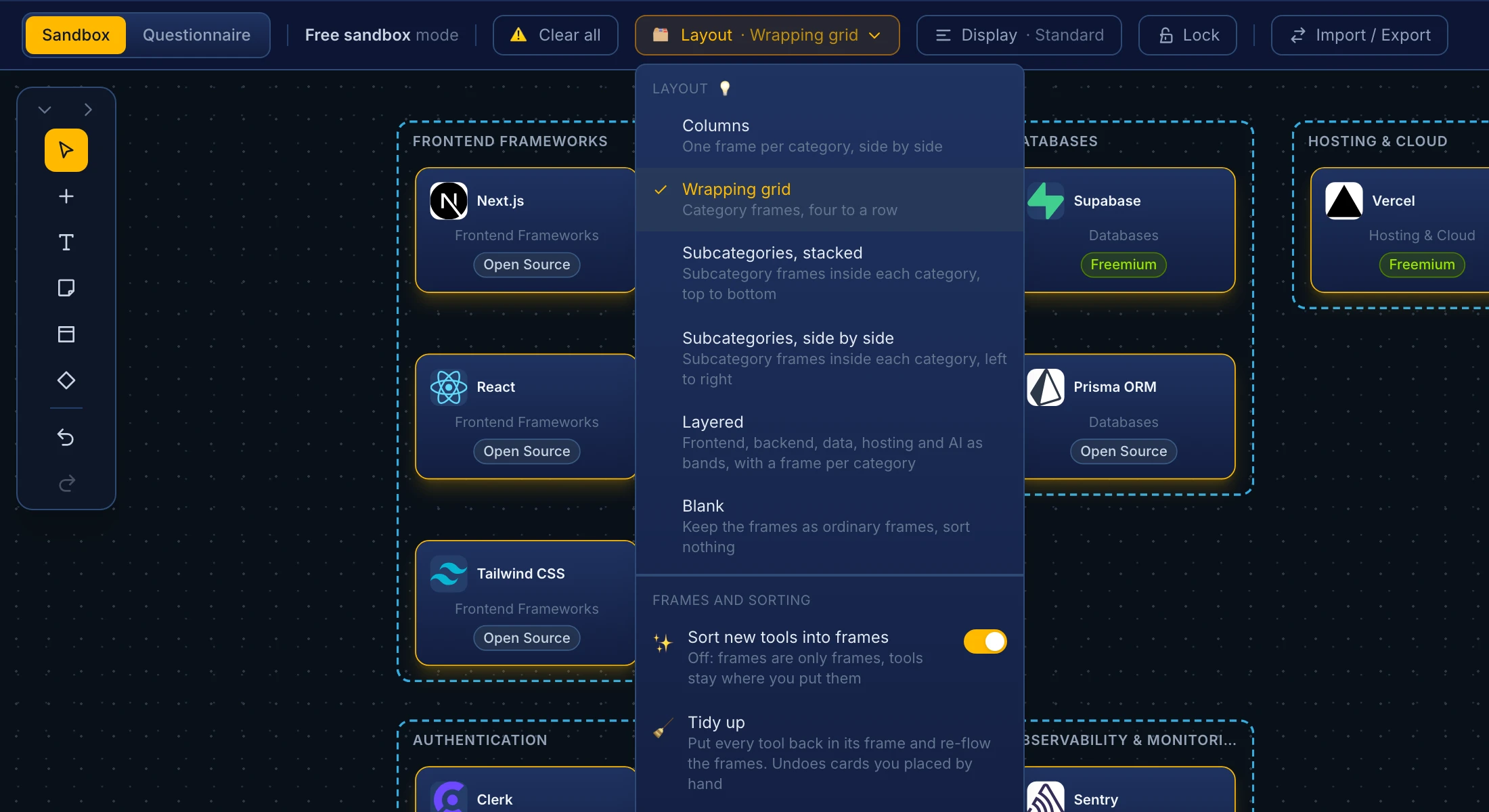
- →A layout is a starting point, not a cage. Drag a card out of its frame and it stays where you put it; drop it back inside and it snaps into place.
- →Layout frames are ordinary frames: rename, recolour, move or resize them, and connect them to other things. A moved frame keeps its place when new tools arrive.
- →Tidy up puts every card back in its frame and re-flows the frames. If you placed cards or moved frames by hand, a layout change asks first, and every change can be undone.
- →Remove frames deletes all the layout's frames at once and leaves the cards where they are.
3. Choose what each card shows
Display sets the look of every card at once: Detailed, Standard, Simple (logo and name on one row), Tile (logo on top, name underneath) or Icon (logo only). Customize mixes your own: logo, name and its position, the category line and pricing. Card border: None drops the card outline, so only logos and text remain; the small icons next to a name still mark enforced, child, custom and conflicting tools. The frames refit whenever the cards change size.
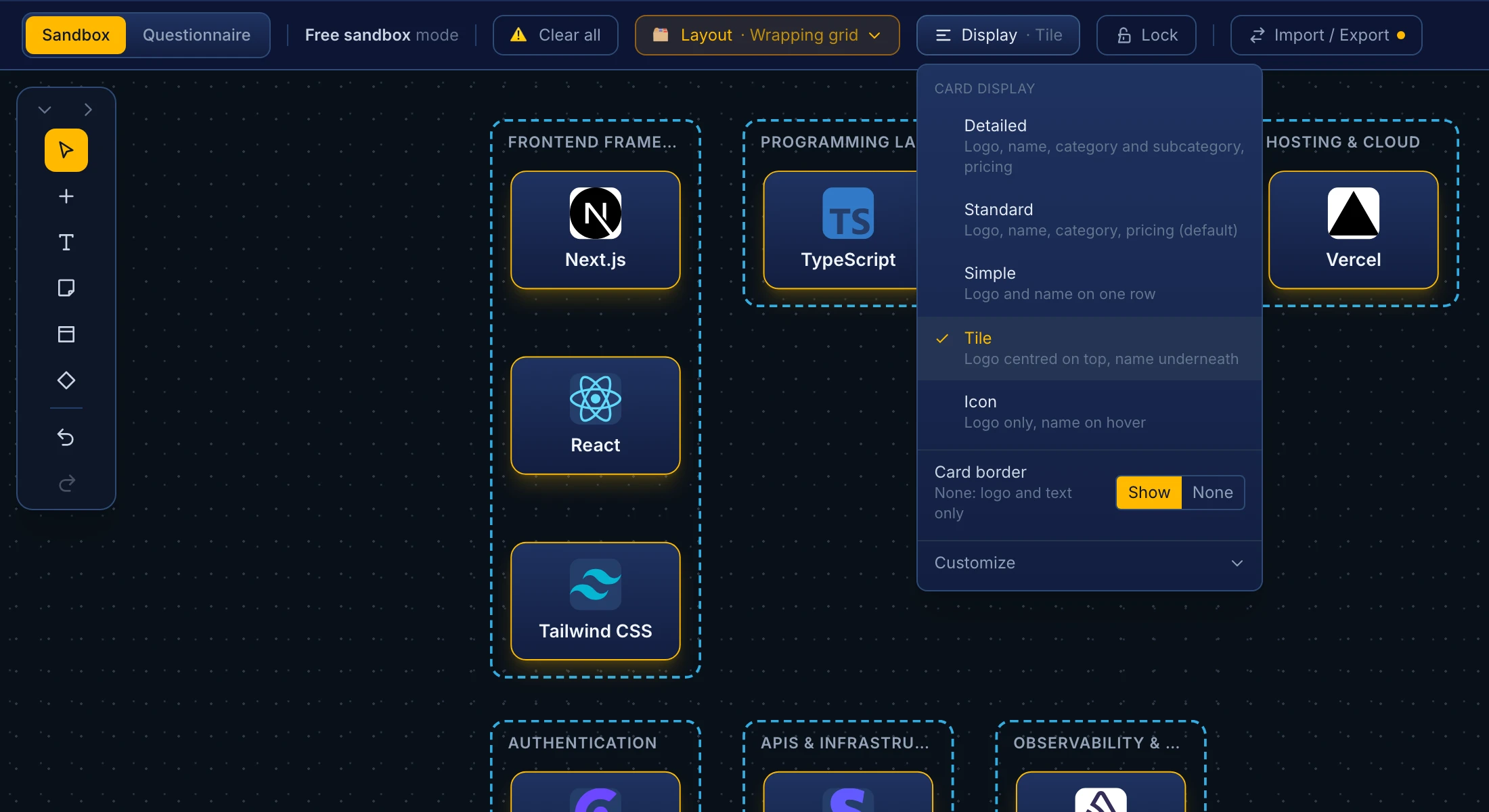
To change one card instead of all of them, select it and drag a corner: its content scales with it. Reset card sizes in the Display menu puts every card back.
4. Add text, notes and frames
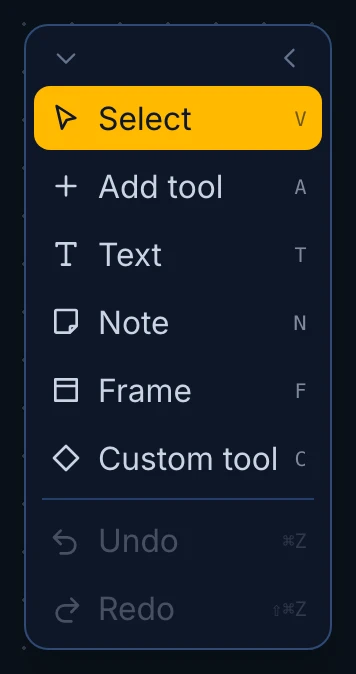
The toolbox at the top left of the canvas holds everything that is not a catalogue tool. Pick an item, then click the canvas to place it; a frame is drawn by dragging a rectangle. Double-click text or a note to edit it.
- →Text: a heading, label or body text, in any colour and alignment.
- →Note: a sticky note for a decision, a caveat or a to-do. Yellow by default; resize it from its corner.
- →Frame: a box that groups whatever sits inside it and carries it along when moved. Frames can nest. To wrap cards you already have, select them (Shift-drag a box) and group them in a frame from the inspector.
- →Duplicate with ⌘D, delete with Delete, nudge with the arrow keys.
5. Connect things
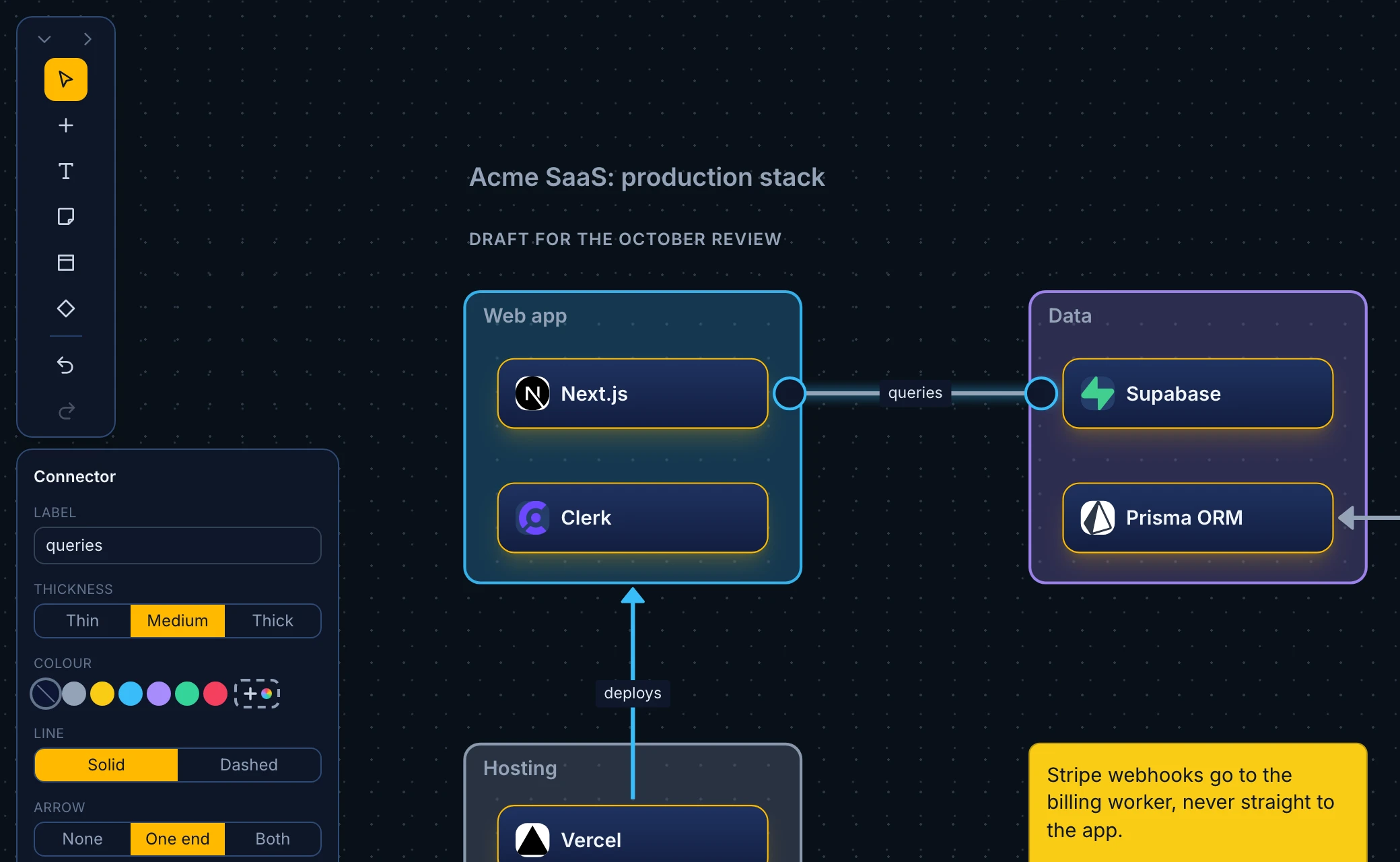
Hover a card, note or frame and four dots appear on its edges. Drag from one onto another node to draw a connector. Select the connector to give it a label, a solid or dashed line, no arrow, one or two arrowheads, a thickness and a colour. Drag either end to move it to another node; drop an end on empty canvas to delete the connector.
6. Tools the catalogue does not list
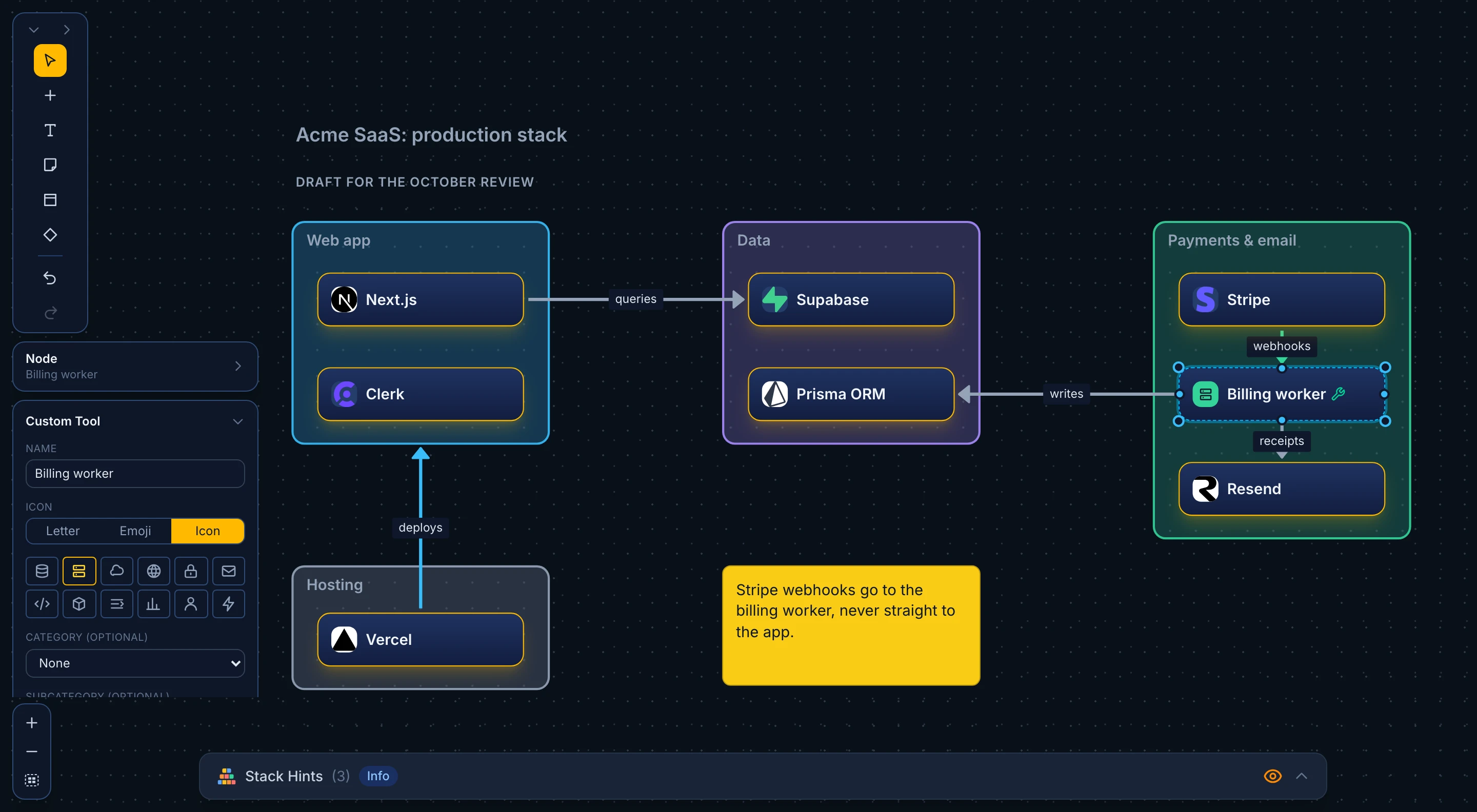
A custom tool stands in for your own service or a vendor Tekyous does not list. Give it a name, an emoji, a letter or one of the built-in icons, and a colour. It can also take a category, subcategory and pricing from the catalogue's own lists: it then shows them like any other card and joins that category's frame in a layout. A green dashed border and a small wrench next to the name mark it, so a diagram never passes it off as a catalogue tool. It has no detail panel and does not take part in hints.
7. Colours, logo size and captions
Select a card and the Node panel opens under the toolbox. It changes the card's background (a palette colour, the standard navy, or none), the name colour and the logo size, and adds a short caption under the card, such as "primary replica". The text switches between dark and light by itself so it stays readable. With several cards selected, the panel changes all of them. Reset look and Reset size undo it.
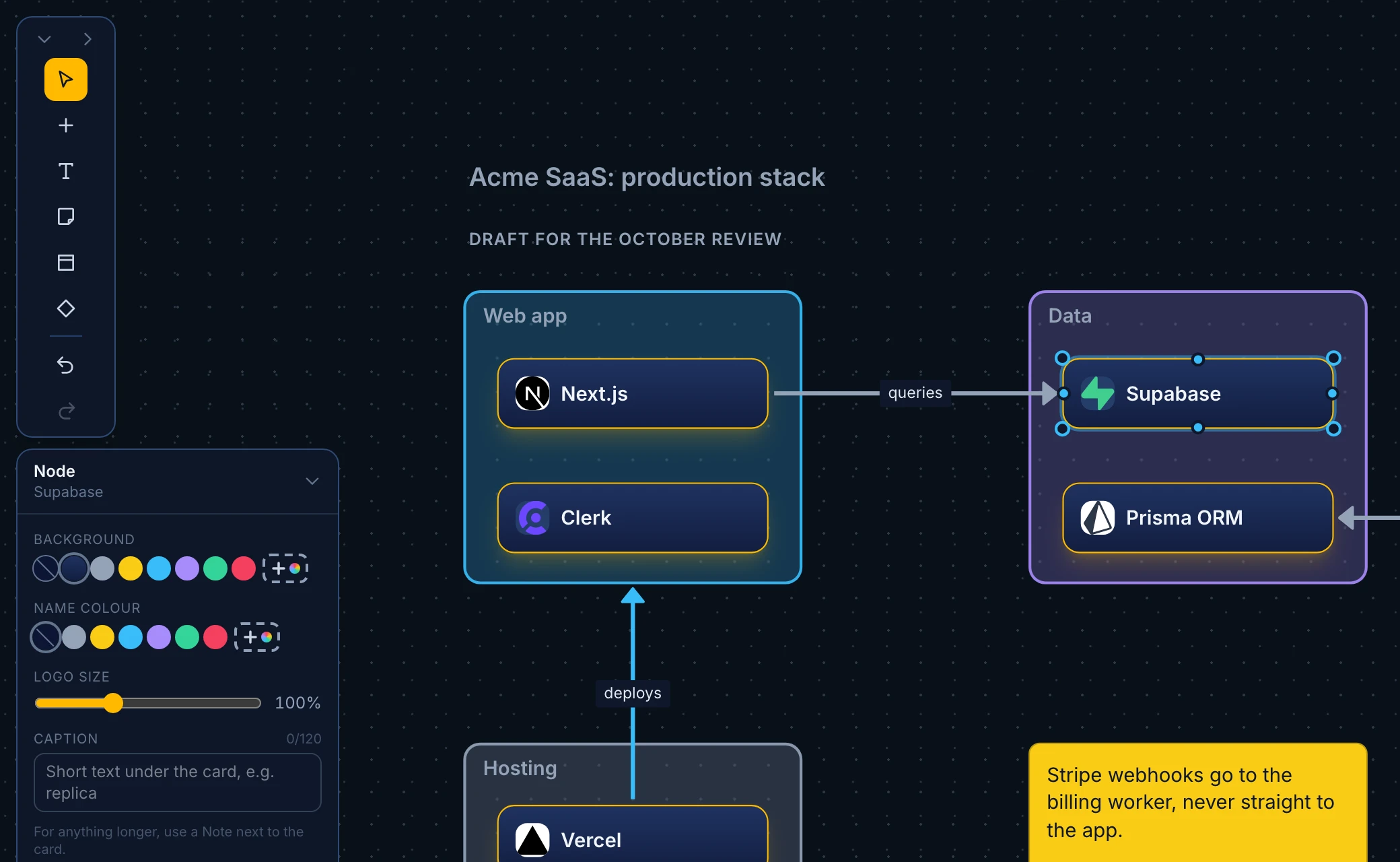
Frames, notes, text and connectors use the same colours. The + beside any colour row opens a mixer with a colour field, a hex box and your recent colours. A frame also has a fill (none, soft, strong or solid), a solid or dashed border, and a title you can place inside or above it.
8. Keep and share your work
- →Undo and redo cover the last 50 steps: ⌘Z and ⇧⌘Z, or the arrows at the bottom of the toolbox.
- →Your browser keeps the canvas between visits. Browser storage can be cleared, so an amber dot on Import / Export marks changes you have not exported yet.
- →Export saves the diagram as a JSON file: tools with their positions, sizes and colours, frames, notes, text, custom tools, connectors, the layout and the display. Import brings it back exactly, on any computer; send the file to a colleague to share a diagram. Importing over a canvas with content asks first and can be undone.
- →Lock freezes the canvas so nothing moves or gets deleted while you present it. Hide header and Full screen sit at the right end of the toolbar.
- →Cloud saving and shareable links are on the Roadmap.
9. Keyboard shortcuts
In Sandbox. They pause while you type in a note, a title or a search box.
- Select
- V
- Add a catalogue tool
- A
- Text
- T
- Note
- N
- Frame
- F
- Custom tool
- C
- Undo
- ⌘Z
- Redo
- ⇧⌘Z / ⌘Y
- Duplicate
- ⌘D
- Delete the selection
- Delete
- Nudge (hold ⇧ for 10 px)
- ← ↑ → ↓
- Add to the selection
- ⇧ / ⌘ click
- Select with a box
- ⇧ drag
- Cancel, deselect, close panels
- Esc
Ready to draw your stack?
Free, no account required. For the catalogue, hints and relationships, see How Tekyous works.